Xiaomi MiMo Setup
Set up Xiaomi MiMo in Chatbox and distinguish pay-as-you-go API credentials from Token Plan credentials and endpoints.
Obtain Credentials
MiMo supports both pay-as-you-go API access and Token Plan subscriptions.
| Usage method | API Host example | Key format | How to obtain it |
|---|---|---|---|
| Pay-as-you-go API | https://api.xiaomimimo.com/v1 | sk-xxxxx | Create a key in API Keys. |
| Token Plan | https://token-plan-cn.xiaomimimo.com/v1 | tp-xxxxx | After subscribing, obtain the dedicated Base URL and key from Token Plan. |
Configure Xiaomi MiMo
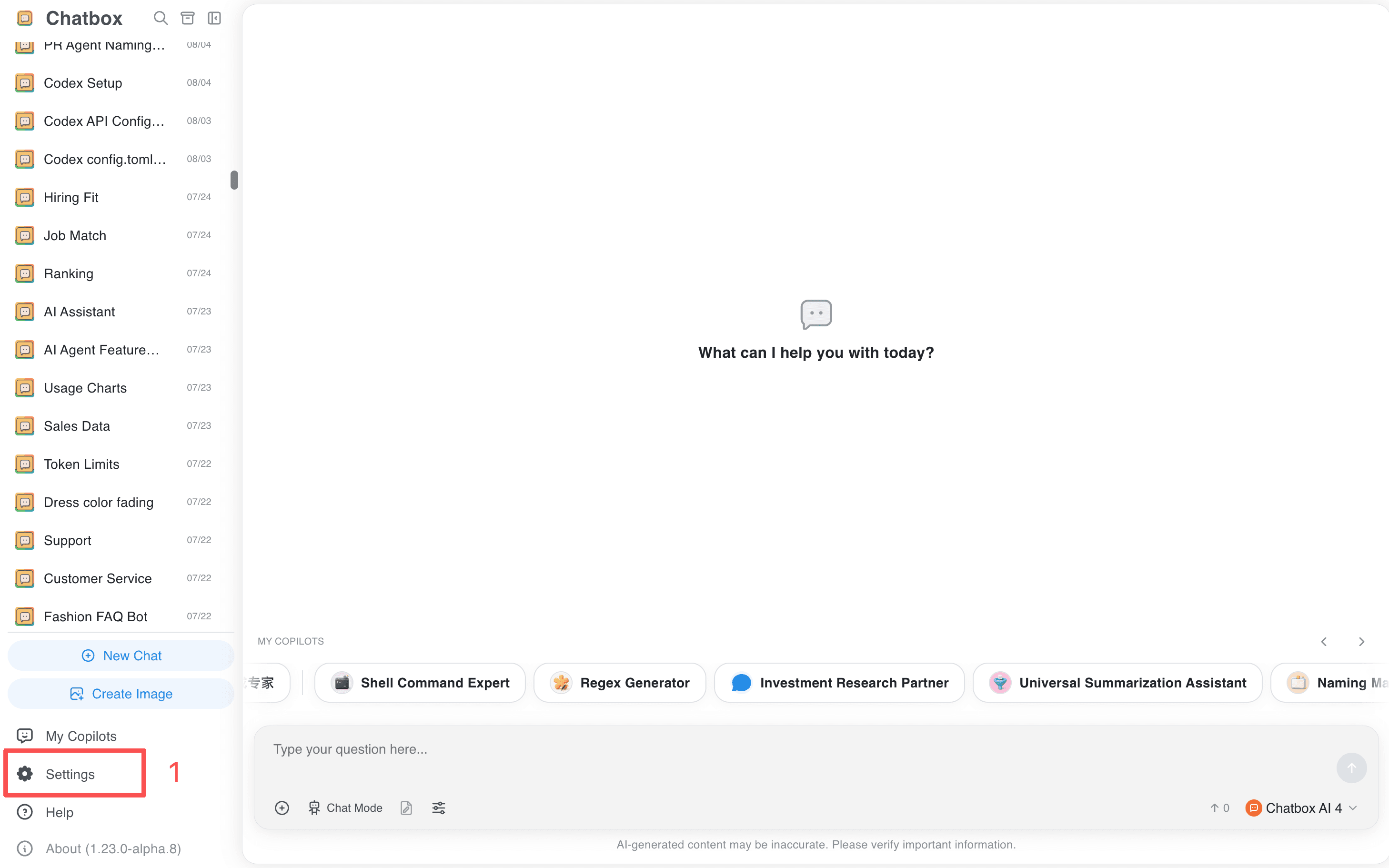
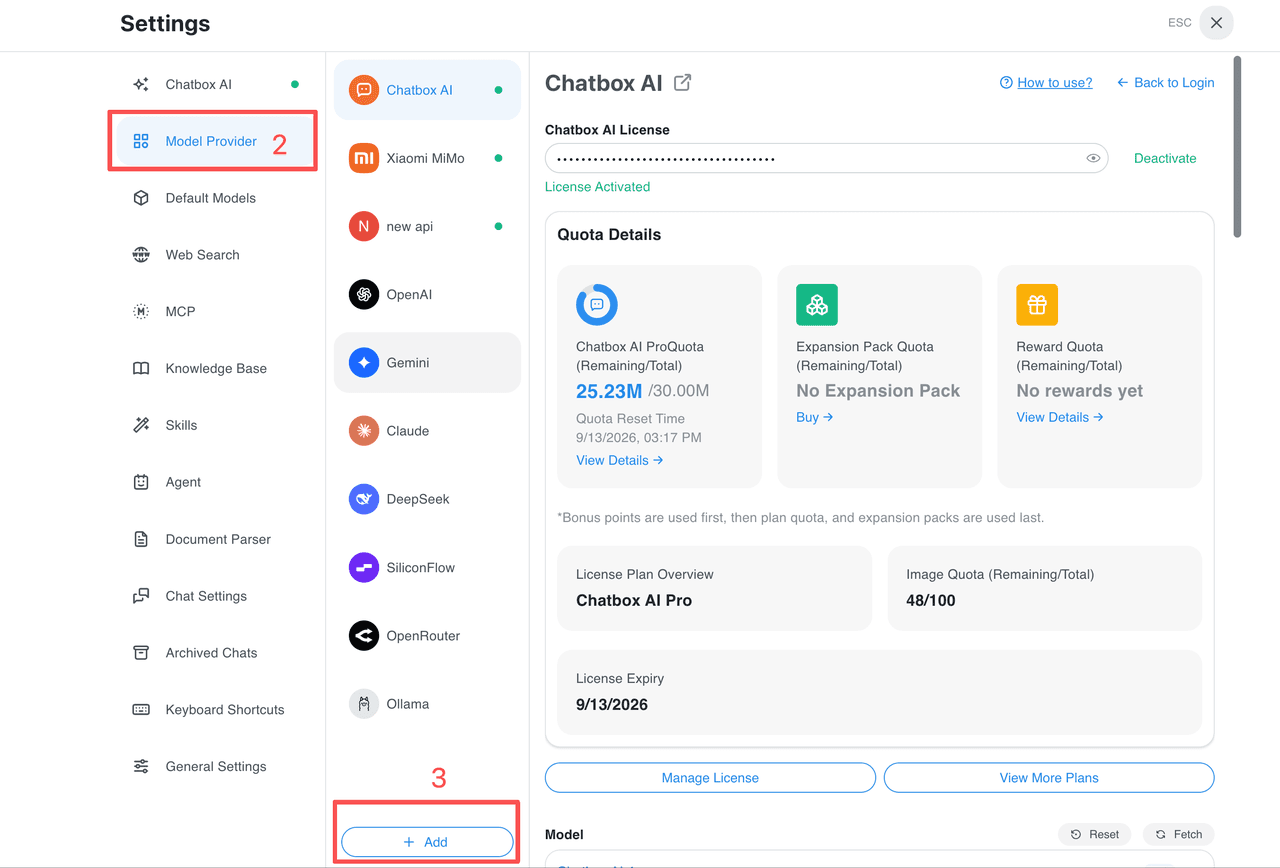
- Open Settings → Model Provider → Add.
💡
On mobile, tap the menu in the top-left corner to expand the sidebar before opening Settings.
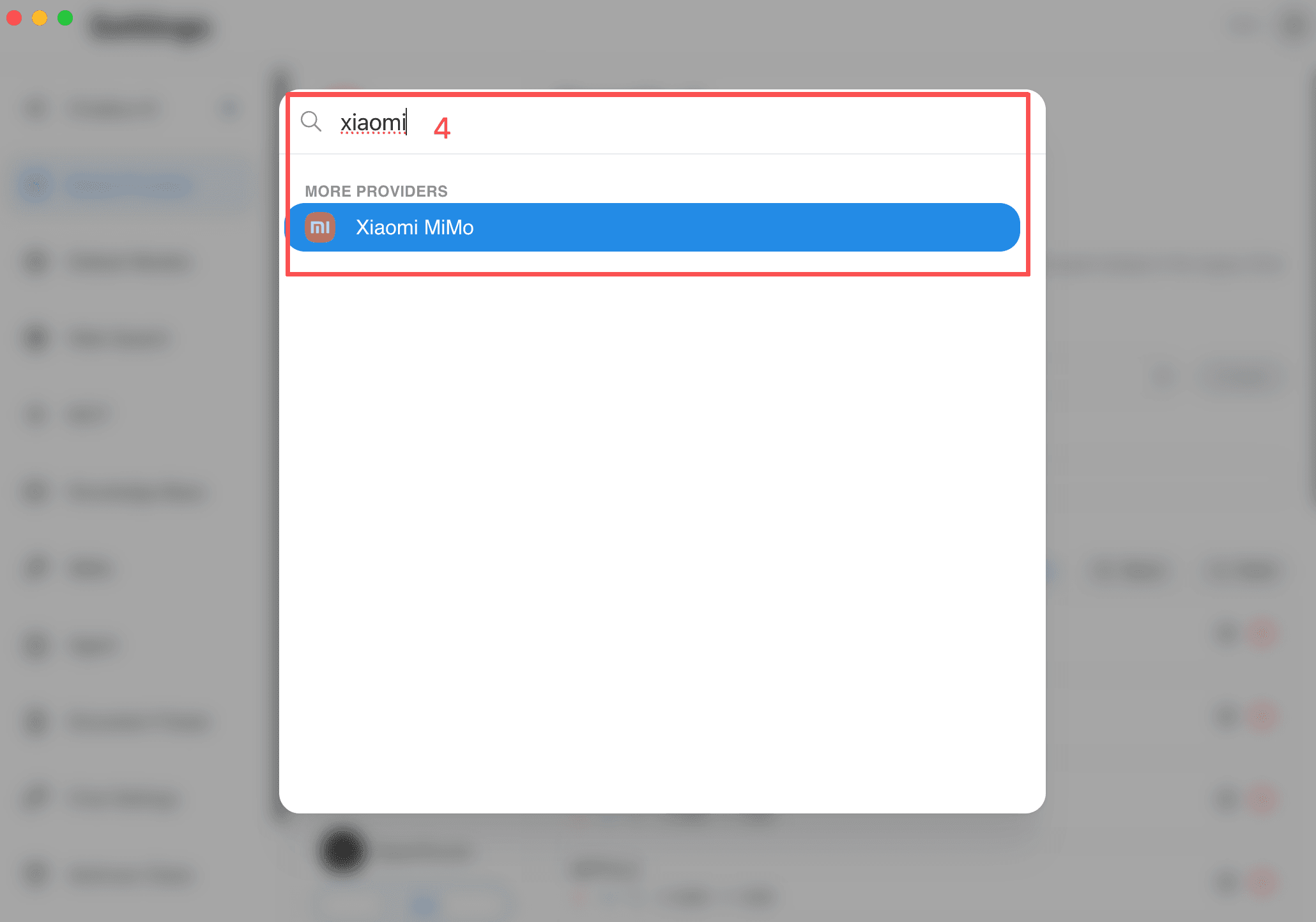
- Search for and select Xiaomi MiMo.
- For pay-as-you-go access, paste the API Key and leave the API Host unchanged.
- For Token Plan, replace both the API Key and API Host with the dedicated values shown in the Token Plan console.
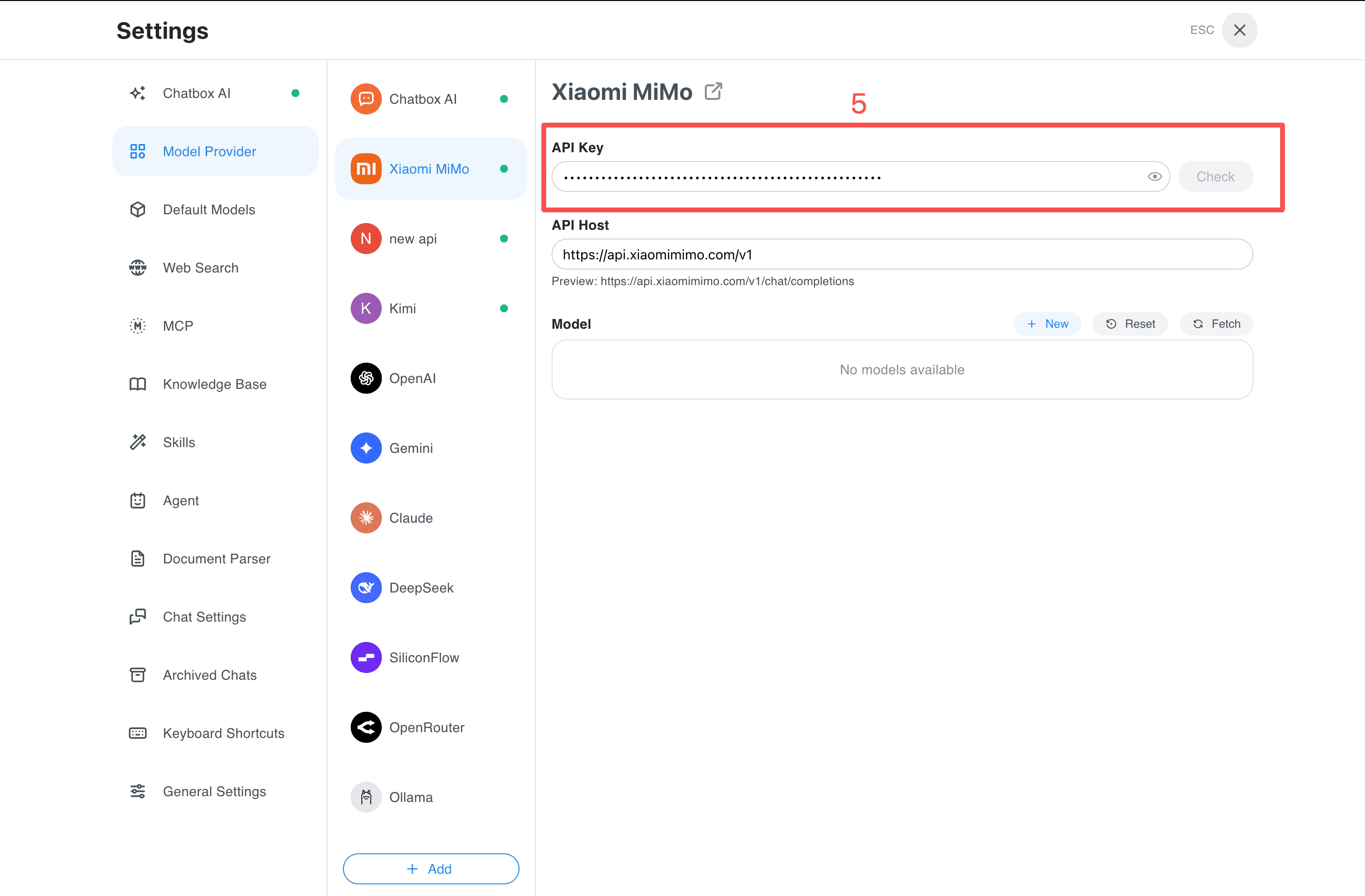
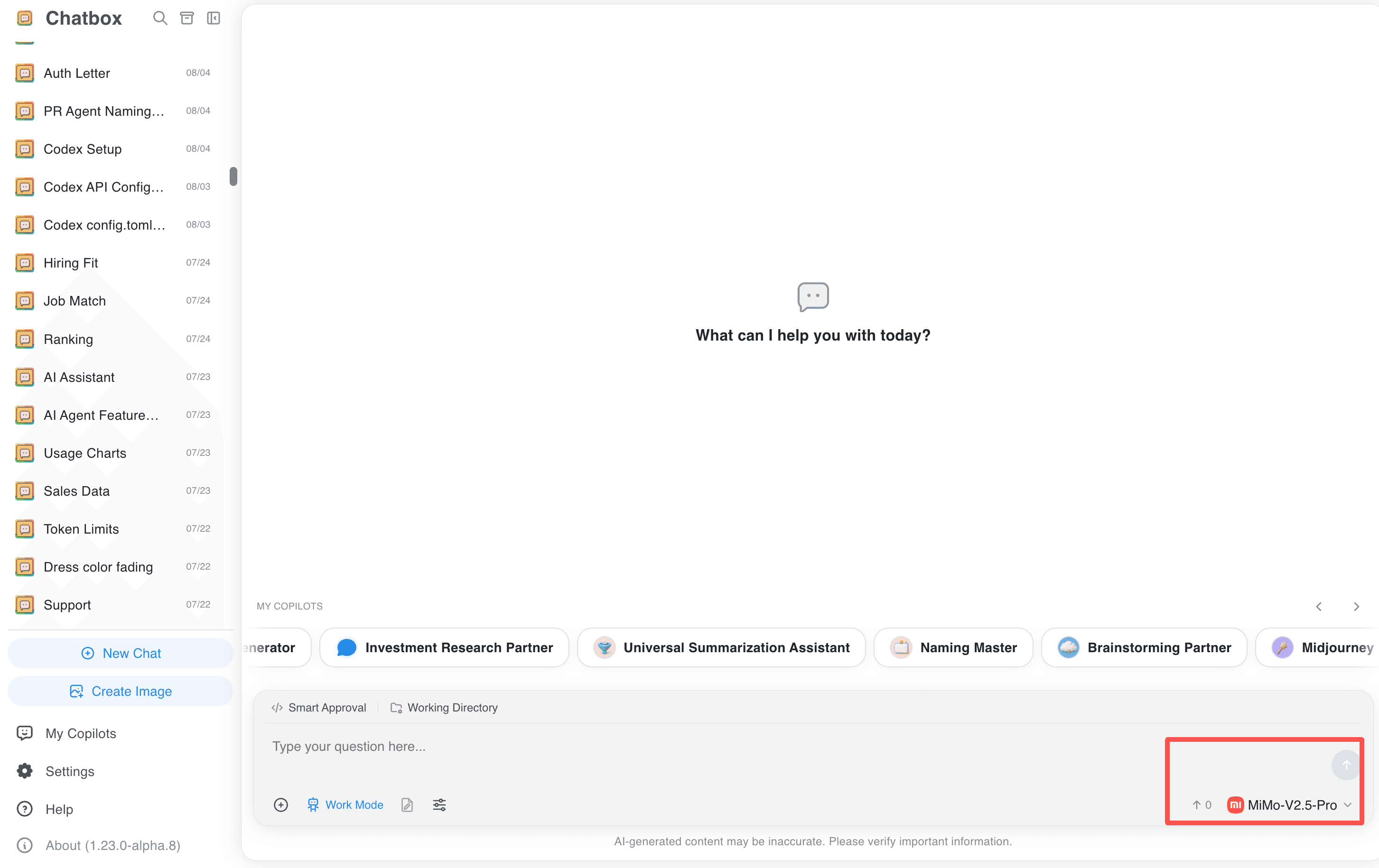
- Click Check next to the API Key. After the test succeeds, select a model from the model list and start chatting or use Work Mode.
Troubleshooting
When switching billing modes, update both the key and endpoint together using your console values. If the test succeeds but a model fails, refresh the model list and check that your account has access to that model.
Related guides
All providers · Choose a provider · Connection troubleshooting