Your First Chat
Start your first AI conversation — just pick a setup method and you're ready to go.
Welcome Screen
After launching Chatbox for the first time, you'll see a guided setup screen on the home page. It introduces key features and then asks you to choose based on your experience:
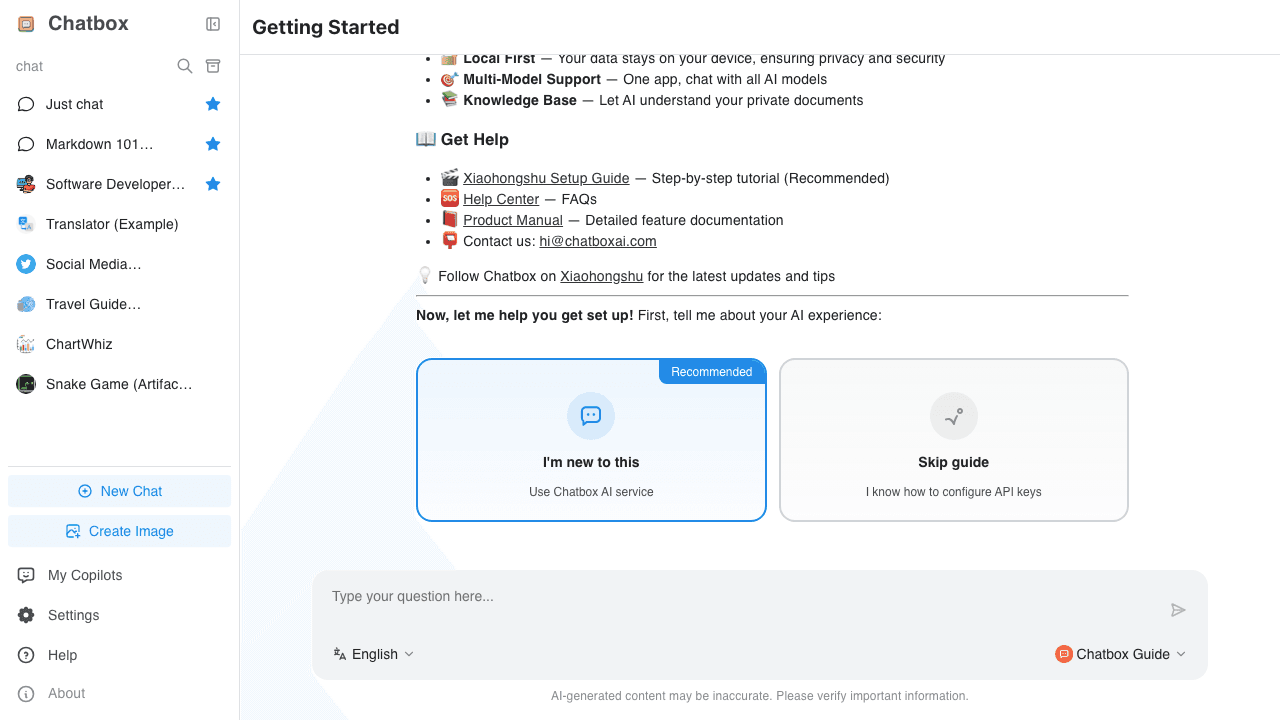
There are two cards at the bottom:
- "I'm new to this" (Recommended) — Starts an interactive guided setup to help you configure Chatbox AI step by step
- "Skip guide" — Skips the guided setup for users who already know how to configure API keys
Below, we'll explain both methods in detail.
Method 1: Guided Setup (Recommended)
This is the easiest way to get started. The built-in guide walks you through the entire process in a conversational flow — no need to navigate menus yourself.
Steps
- Click "I'm new to this" on the welcome screen
- The guide will introduce Chatbox AI as an all-in-one service and display a "Login" button
- Click the Login button — Your browser will automatically open for authorization (if it doesn't open, click the link shown or copy it to your browser)
- Log in via browser — Sign in with your email
- Authorize — Grant the Chatbox client access to your account
- Return to the app — After authorization, you'll be redirected back in a logged-in state. A "New Chat" button will appear — you're ready to go!
New User Registration & Free License
If you don't have an account yet, register first:
- Visit the Chatbox website and create an account
- After logging in, claim your free license (provides daily-refreshing free quota)
- Or directly purchase a paid plan for more quota
After your free quota is used up, you can:
- Subscribe to a Chatbox AI plan
- Use your own API Key (see Method 2)
Method 2: Manual Configuration
If you click "Skip guide" on the welcome screen (or if you've already completed onboarding), you can configure providers manually through the Settings page.
💡
On mobile, tap the menu icon (☰) in the top left to open the sidebar first, then tap "Settings".
Option A: Use Chatbox AI Service
- Open Settings — Click "Settings" in the bottom left of the sidebar
- Select "Chatbox AI" — It's the first item in the settings navigation
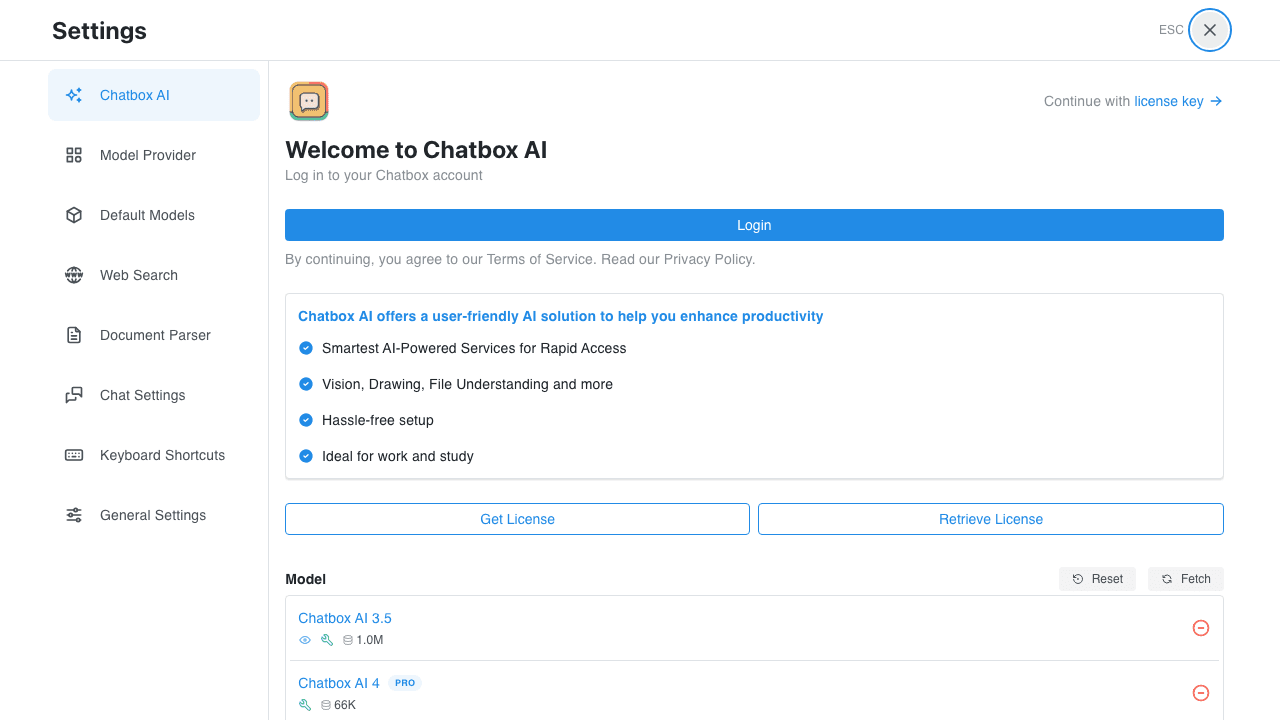
- Click the Login button — Your browser will open for authorization
- Log in and authorize — Sign in with your email and grant access
- Return to the app — You'll see your login status and account usage
- Close Settings — You're ready to start chatting
Option B: Bring Your Own Key (BYOK)
- Open Settings — Click "Settings" in the bottom left of the sidebar
- Select "Model Provider" — Choose a provider from the list (e.g., OpenAI)
- Enter your API Key — Input the API Key obtained from your provider
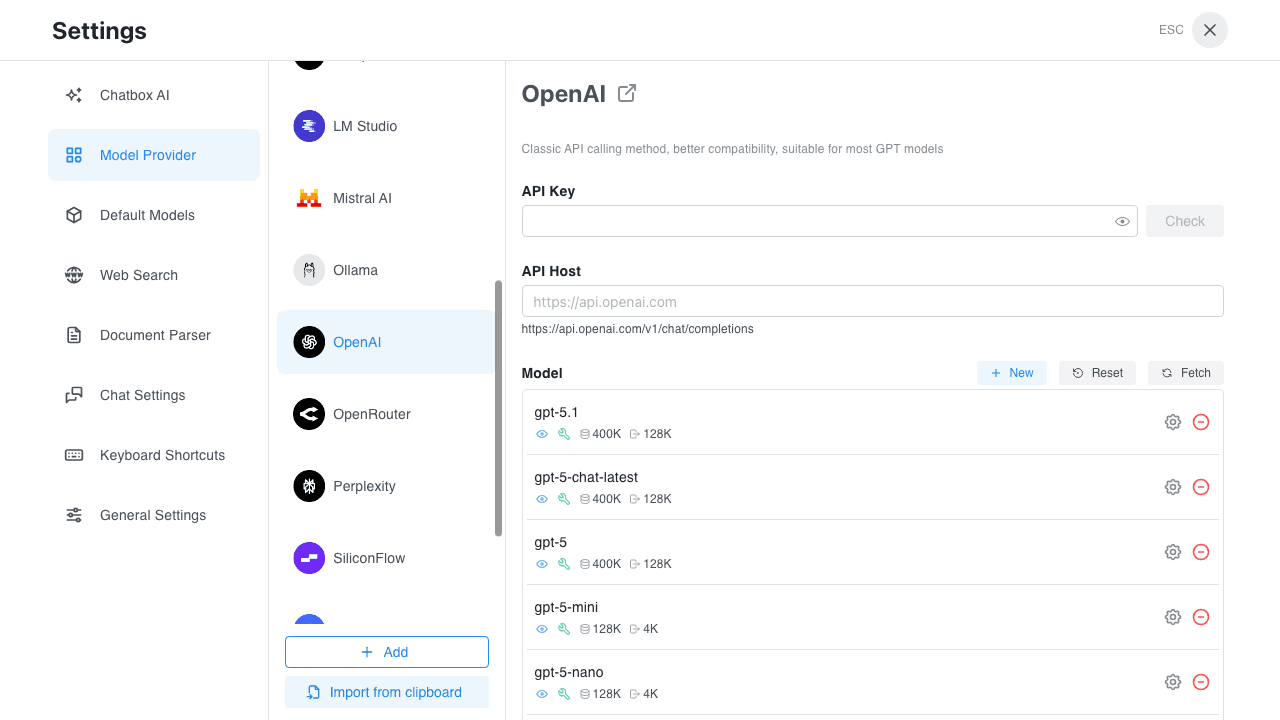
- For detailed setup, see the BYOK Configuration Guide
Interface Overview
- Sidebar — Shows your conversation list, where you can create new conversations or switch between history
- Chat Area — Displays the messages in the current conversation
- Input Box — Enter your message at the bottom
- Settings — Click the Settings entry in the bottom left to access settings
💡
On mobile, the sidebar is collapsed by default. Tap the menu icon (☰) in the top left to expand it, then tap "Settings".