GLM Coding Plan Setup
Set up GLM Coding Plan in Chatbox, choose the correct regional provider, and distinguish individual, team, and standard API keys.
Get an API Key
Register or sign in on the Z.AI Open Platform, then create a key in the appropriate plan area:
- Individual plan users: Individual Coding Plan
- Team plan members: Team Coding Plan
Individual and Team keys are not interchangeable. Keep your key private and do not hard-code it in public code.
Configure the Provider
- Open Chatbox and click Settings in the bottom-left corner.
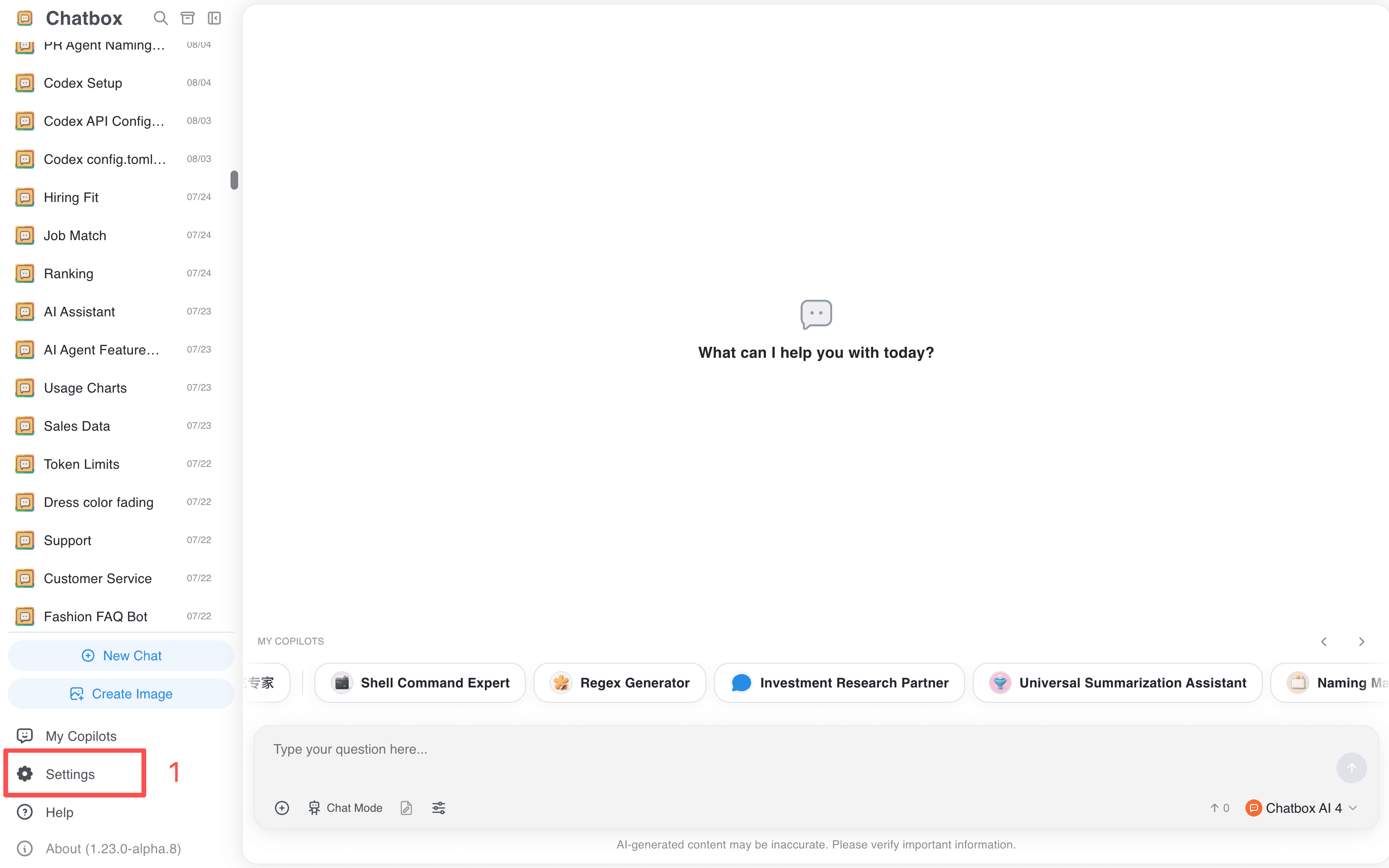
- Select Model Provider, click Add, and search for
GLM.
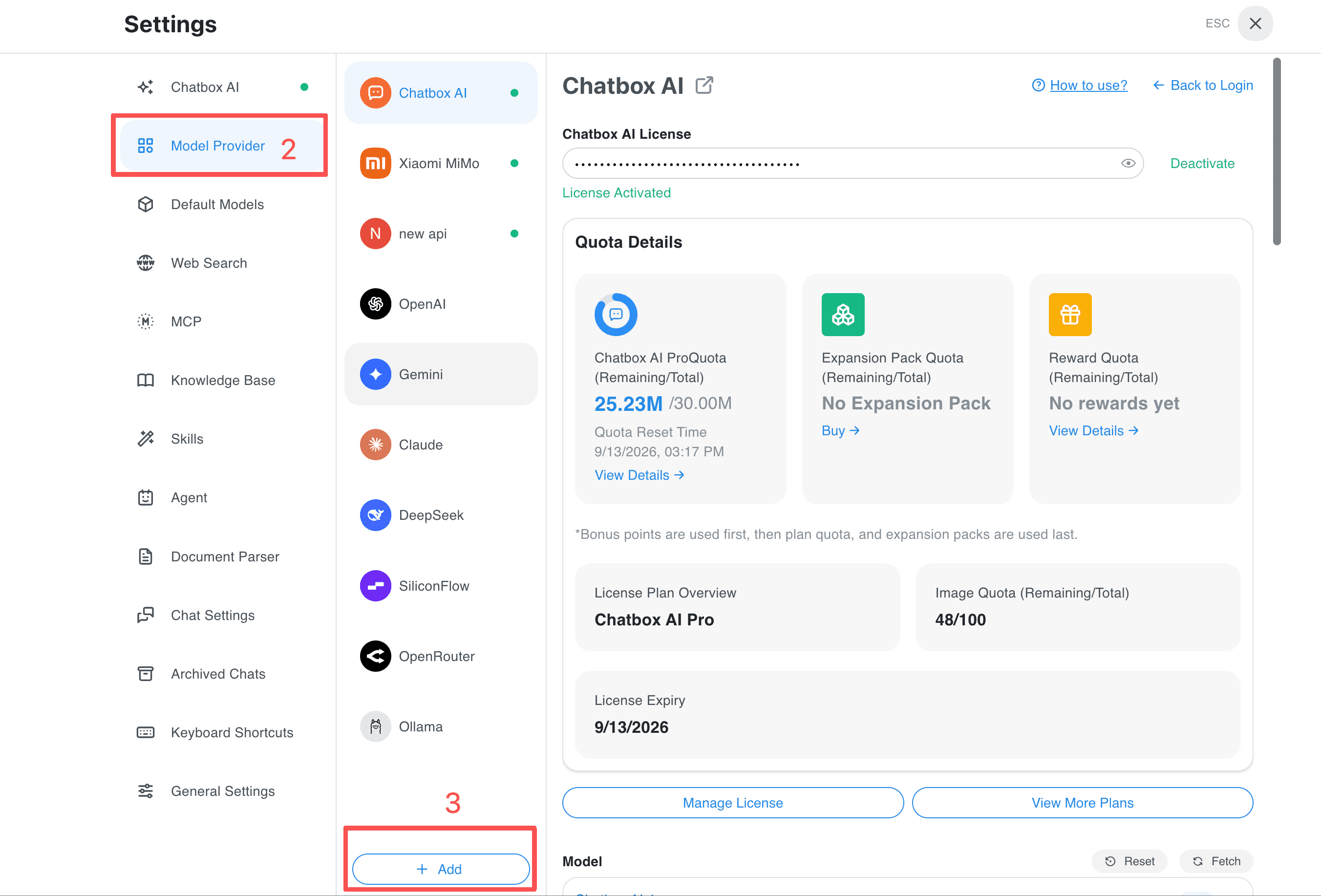
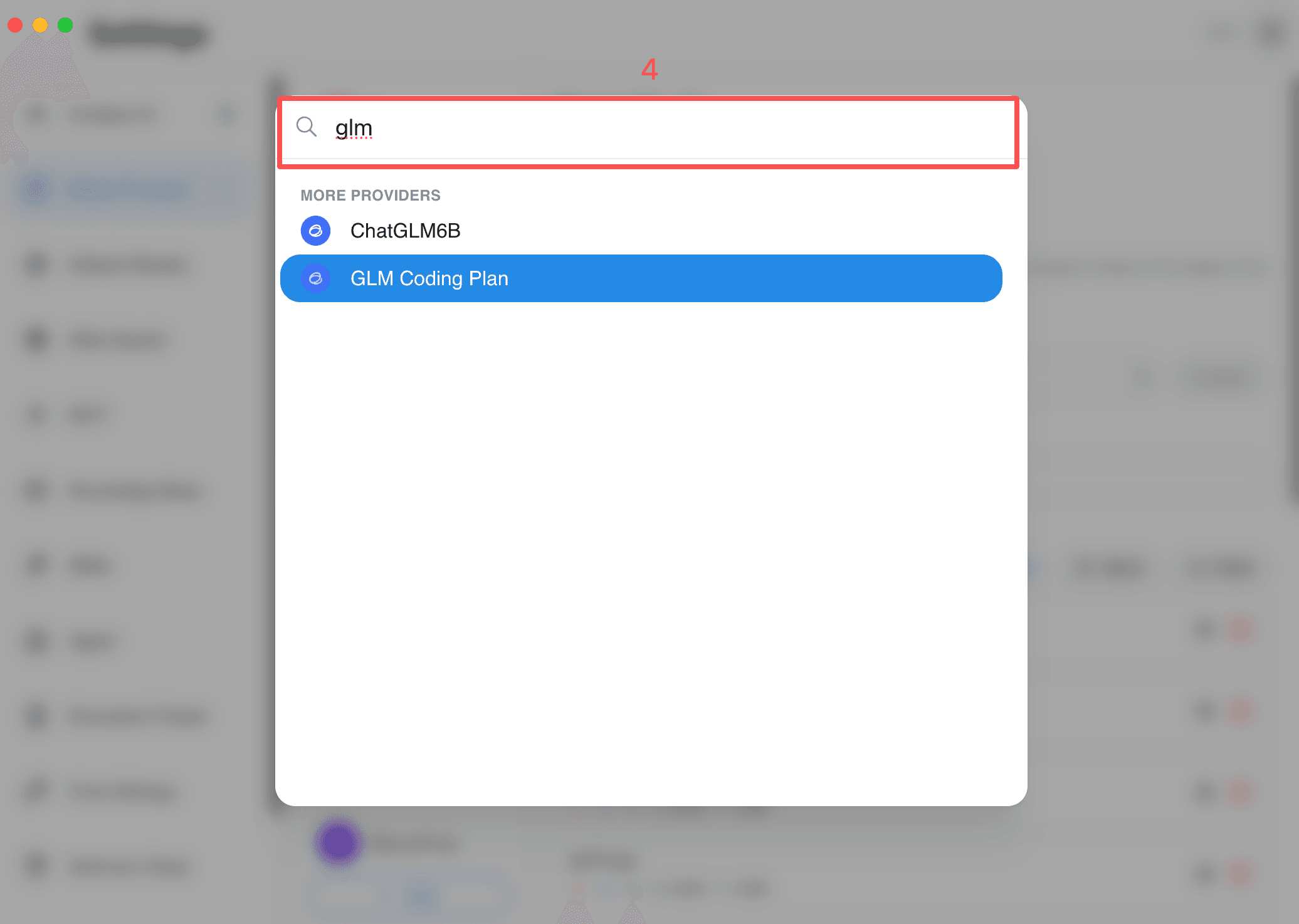
- Select GLM Coding Plan and paste the matching API Key into the API Key field. For a Z.AI key, set API Host to
https://api.z.ai/api/coding/paas/v4. The built-in default is the Chinese BigModel endpoint (https://open.bigmodel.cn/api/coding/paas/v4); keep that default only for a matching BigModel key. Keep API Path as/chat/completions.
- Click Check and wait for the test to succeed.
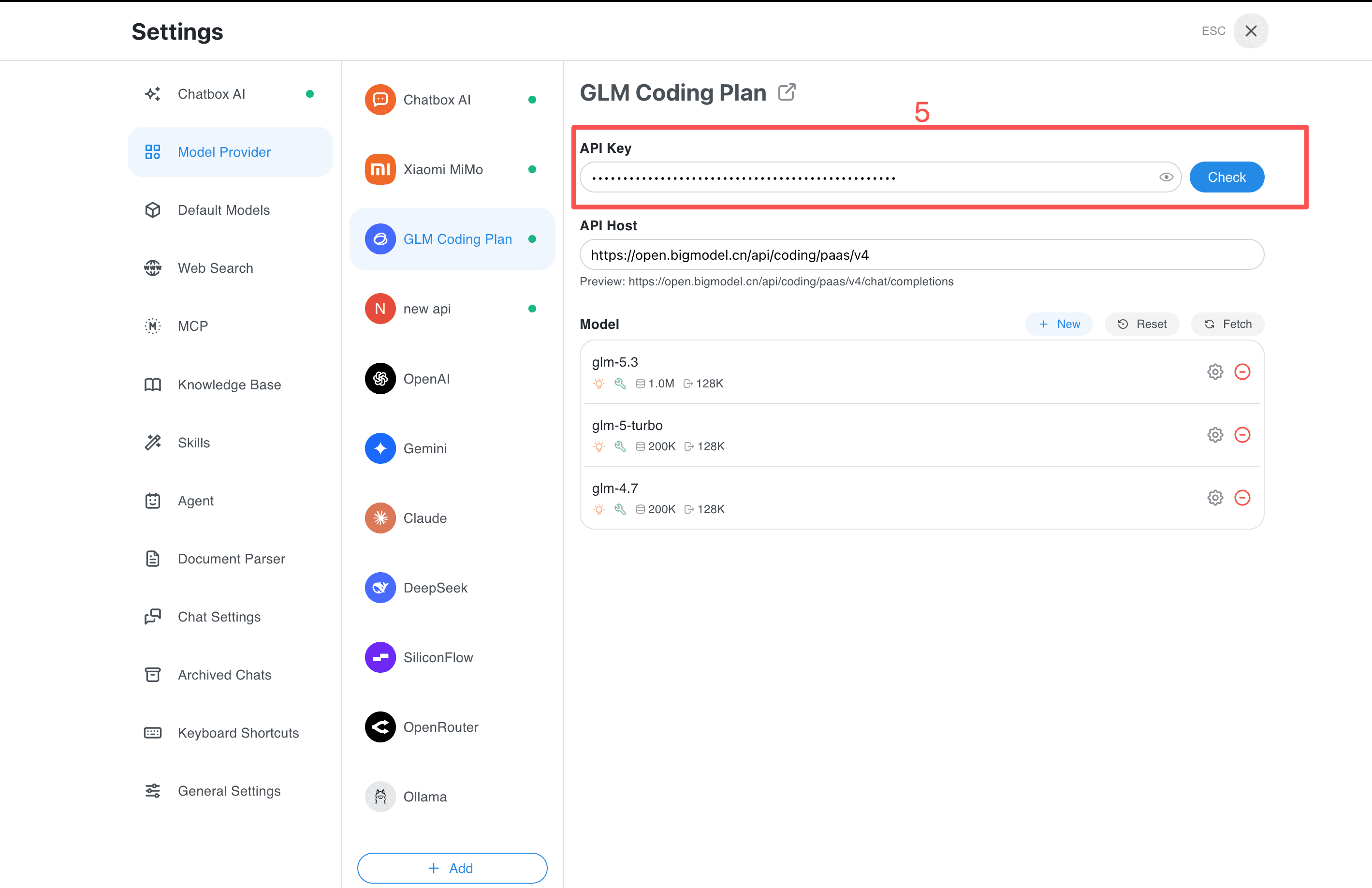
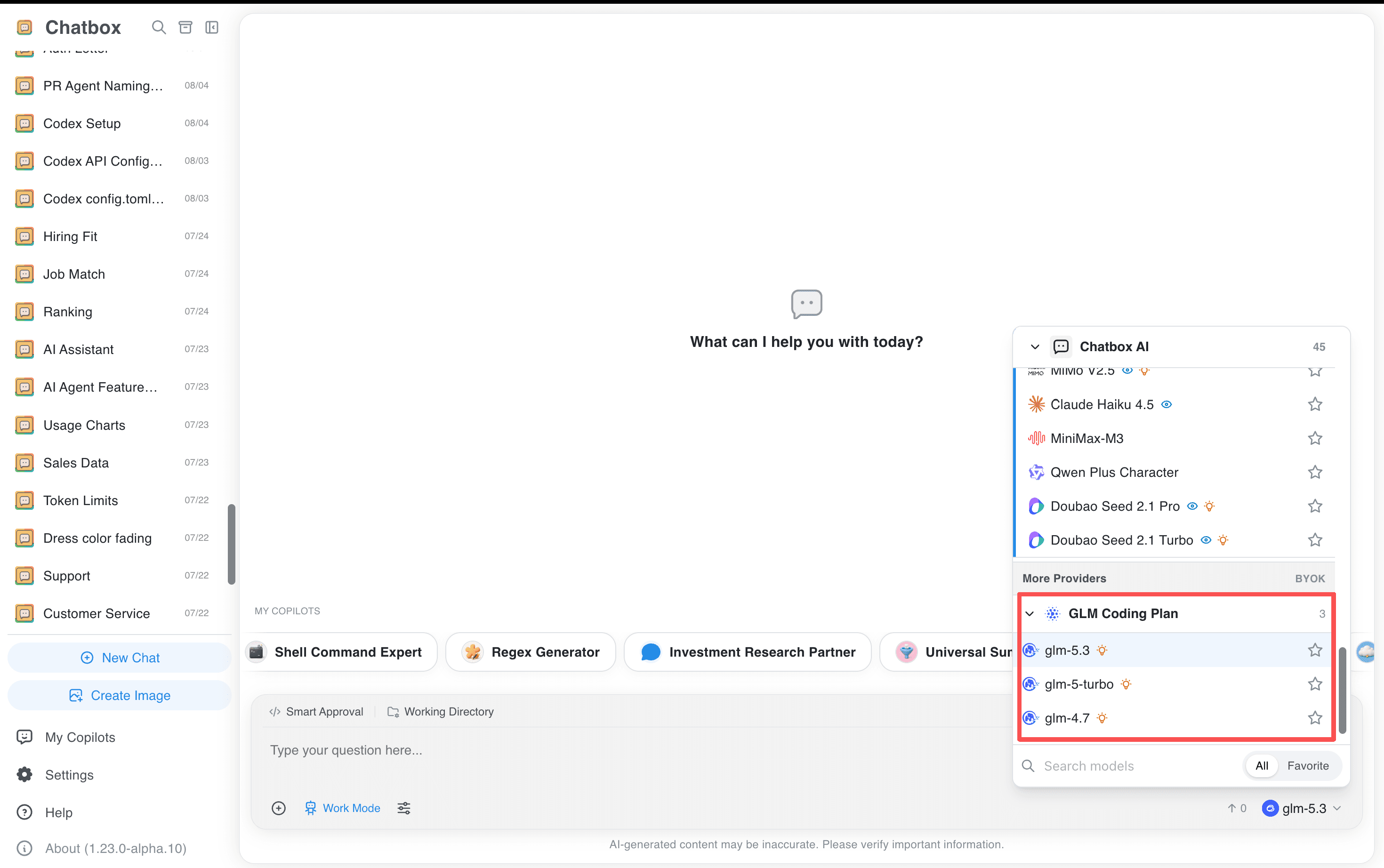
Click ESC to leave Settings, then select an available GLM model from the model list to start chatting.
Troubleshooting
Check for extra spaces or line breaks in the key, confirm that the key is valid for your plan, and verify network, firewall, proxy, and Chatbox version settings. For context or model errors, enable Improve Network Compatibility, confirm model availability, and review parameters such as temperature and Maximum Output Tokens.
Related guides
All providers · Choose a provider · Connection troubleshooting